Match every quiz to your brand
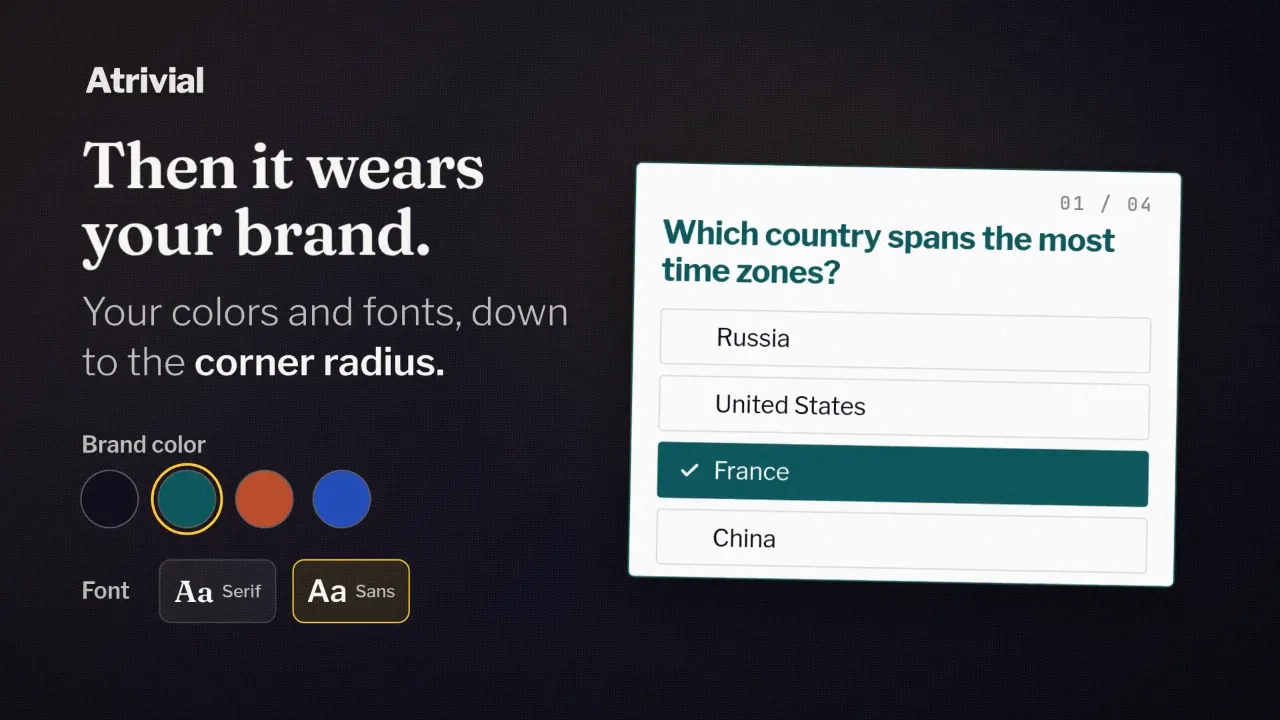
Your colors and fonts carry through every screen, down to the corner radius.
A reader taps an answer in your email and lands on the quiz page. That page should feel like the next part of your newsletter, in your colors and your type, so nobody stops to wonder whose site they're on.
Atrivial lets you style every quiz you publish, on Individual and on Business. Here's what you can change, where you change it, and what the settings don't cover.
Where the brand settings live
When you set up a quiz in the Portal, open the step called Quiz Style. On Business the same step is called Style & Sponsors, because the sponsor settings live there too. Your brand sits in a card called Custom Style. Switch it on, then choose Simple or Advanced.
The step shows a preview of the quiz while you work, so you can check each change before readers see it.
Simple mode asks for four things
Simple mode suits an operator with a brand color and five spare minutes. You pick one primary color, and Atrivial builds the canvas, cards, accents and outlines from it. It also picks text colors that stay readable against the rest, so you don't have to work out contrast yourself.
- Primary Color, the one color the palette is built from
- Theme, set to Light, Dark or Device, which follows each reader's own light or dark setting
- Font, one of four pairings named Atrivial, Modern, Editorial and Friendly
- Corner style, set to Square, Soft or Rounded
Advanced mode, down to the corner radius
Advanced keeps your primary color and theme and opens up the rest. You can set Surface Color, Success, Critical and Outline yourself, or leave any of them on automatic. Corner radius turns into a number from 0 to 24 pixels, so the quiz's cards and buttons can match the rounding on your site.
Fonts split into a Title font and a Body font. Choose from the built-in list, link a Google Font by name or by its Google Fonts address, or upload your own file in .woff2, .woff, .ttf or .otf format. If your newsletter uses a custom typeface, upload it and the quiz will use it too. Check that your font license covers use on the web first.
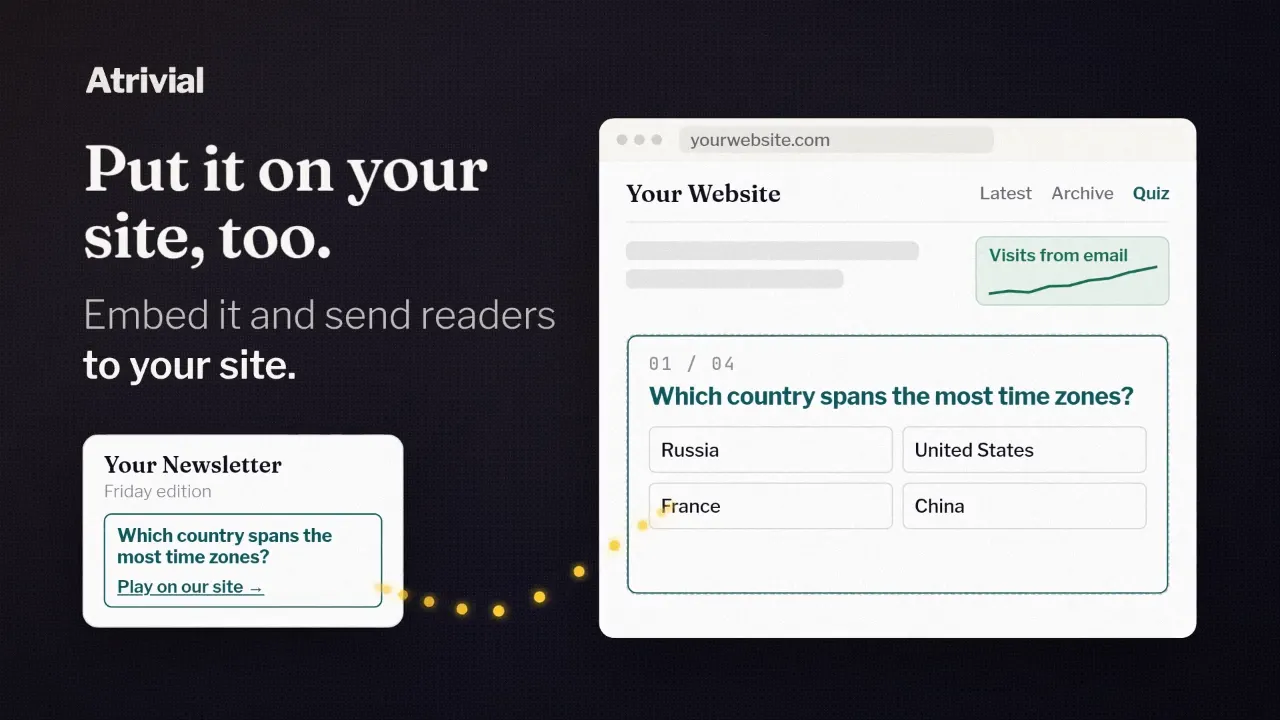
The background can stay on the default gradient, switch to a solid color, or go transparent. Transparent is the one to reach for on Business, where you can embed the quiz on your own site and let your page show through behind it.
One caution before you experiment. Switching from Advanced back to Simple clears the Advanced choices, including your fonts and exact radius, so note them down before you switch.
The email follows your quiz
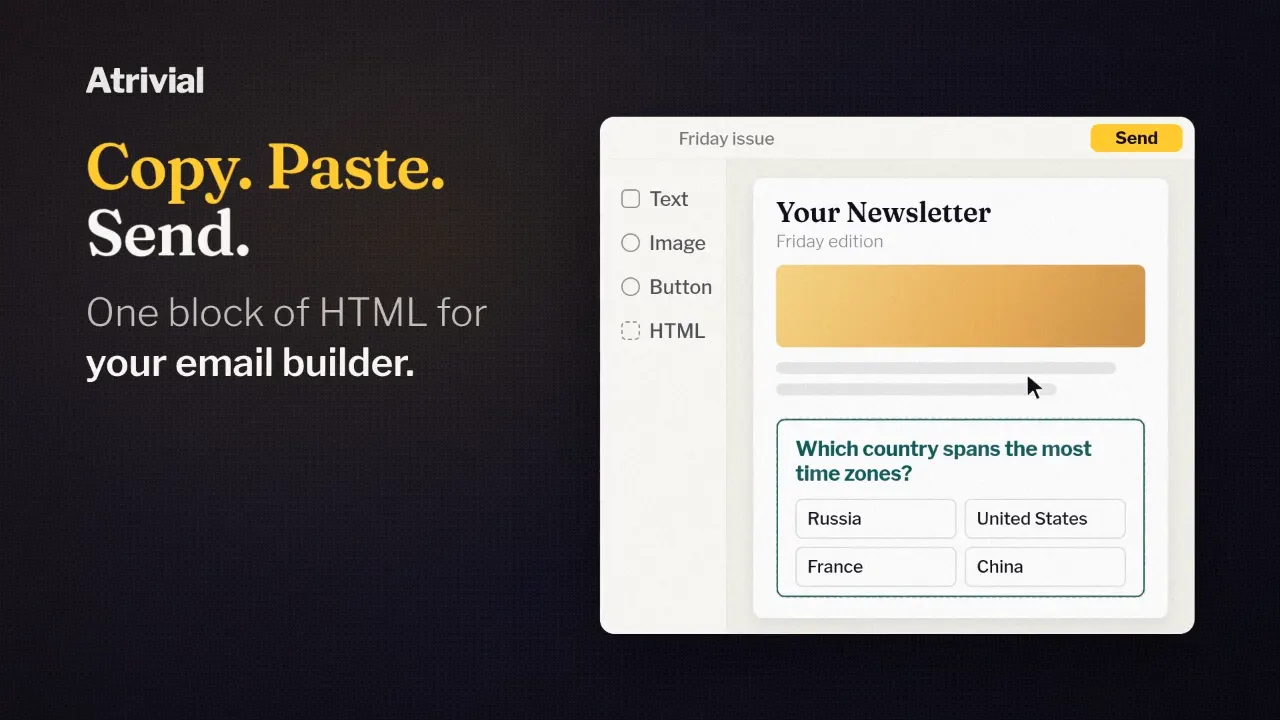
Unless you're on Substack, which uses a quiz link instead, the first question goes right in your email, so the email should match too. In the Email step, turn on Match Email Style to Live Quiz and the email block takes its style from your quiz. Turn it off if you'd rather style the email separately.
What carries over depends on how you send. Auto-Updating Email shows the question as hosted images, so your colors, corner radius and fonts come through as set. For Fixed Email HTML, the email style settings cover colors, corner radius and text size. How an email looks still depends on the reader's inbox, so send yourself a test from your own email platform before the first real send.
What each plan includes, and the limits
Branding is part of every plan. Your settings are saved as a preset, which is a look your quiz series can share. Individual includes one preset, so all your quiz series look the same. Business includes up to three, which helps if you run more than one newsletter or want a sponsored quiz series to look different from your daily one. Enterprise has no preset limit.
Editing a preset updates every quiz series that uses it. When more than one series shares a preset, the Portal tells you how many your change will reach.
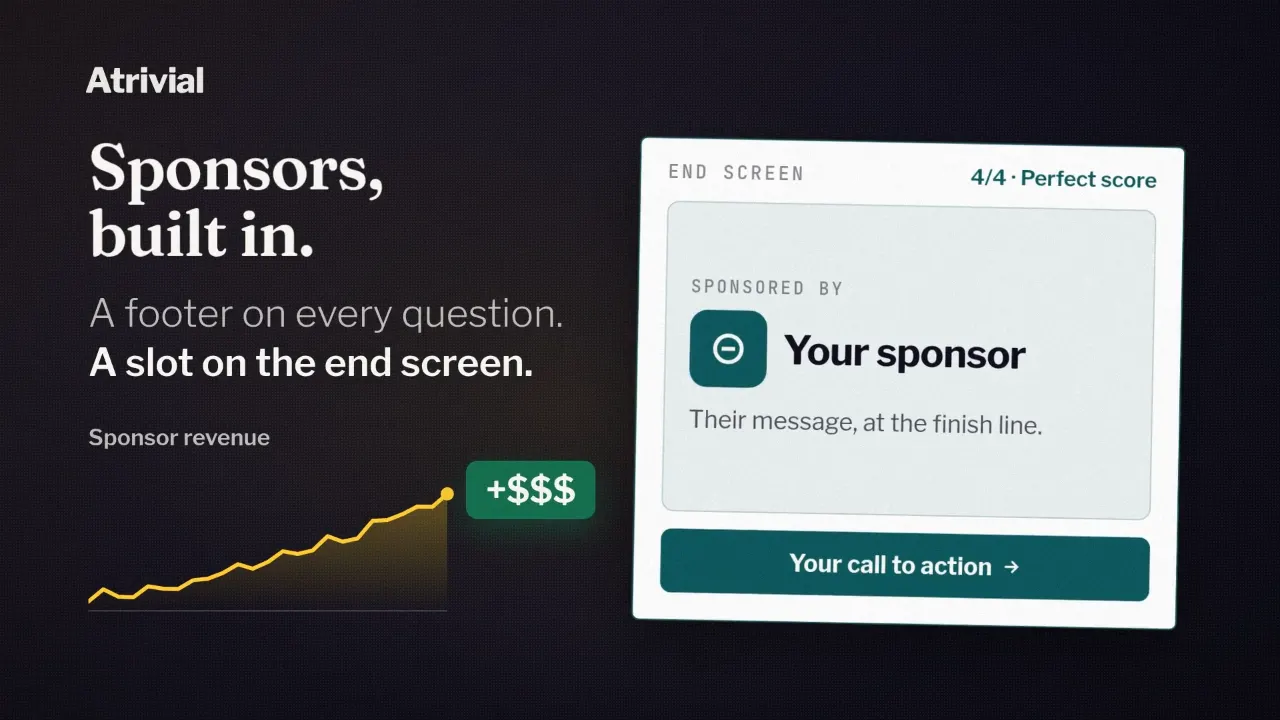
There's no field for your own logo. The logo upload you'll see in Style & Sponsors belongs to the sponsor footer, which is a Business feature. If your logo has to appear on the quiz page, these settings won't put it there.
Branding is included on Individual and Business alike, so choose your plan by what else you need.
Compare plans