See what landed with quiz analytics
Every visitor, streak and sponsor click, charted.
A few weeks after your first quiz goes out, you'll want to know who played, who came back for the next one, and which questions tripped people up. Analytics in the Portal answers all three on every plan. On Business it also shows what your sponsors got.
Who played
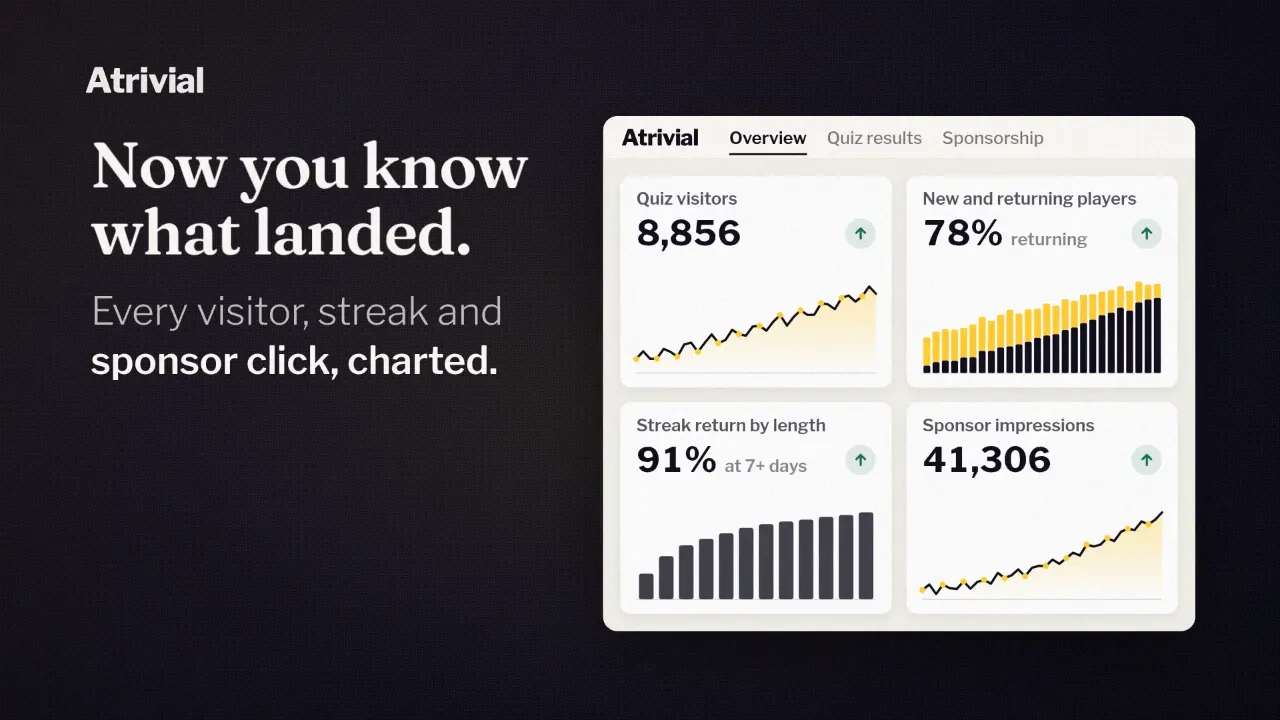
Analytics opens on Overview, a set of cards covering all your quizzes for the date range you pick. Most cards pair a number with a daily chart. On a computer, Edit layout lets you add, remove and reorder cards, so the ones you check each week sit at the top.
Four cards trace the path from visit to finish. Quiz Visitors counts distinct visitors to your quizzes. Quiz Players counts the ones who answered at least one question. Quiz Completions counts finished quizzes, so a reader who plays twice counts twice. Player Completion Rate is the share of players who finished. The gap between Quiz Visitors and Quiz Players is roughly the people who reached the quiz and left without answering.
Engagement Rate shows the share of visits with any activity. Questions Answered includes the extra trivia some readers keep playing after your quiz ends. Quiz Visitors starts counting when someone reaches the quiz, so read it next to the open and click numbers from your email platform.
Who came back
New and Returning Players splits each day's players into two groups. New players are on their first active day in your date range, and returning players already played earlier in it.
Streak Return by Length shows the share of players who kept a streak going, grouped by how long the streak was. Streak Return Over Time charts those rates over time, with a rolling average over seven publishing days. Longest Player Streak and the Player Stickiness Index, a points score for how consistently players return, round out the set.
Streaks count publishing days, so a weekly quiz builds a streak one edition at a time.
Which questions worked
The Quiz results tab looks at one quiz series at a time, or all of them together. Each question appears with its answer choices, the correct one marked, and the share of players who picked each. That's where you catch a wrong answer that drew more readers than the right one, or a question nobody missed.
The tab also shows Engagement Rate, Quiz Completions, Player Completion Rate and Article Clicks, which counts clicks on the article previews readers see in your quiz. Export downloads a quiz's results as a CSV, with the count and percentage for every answer choice.
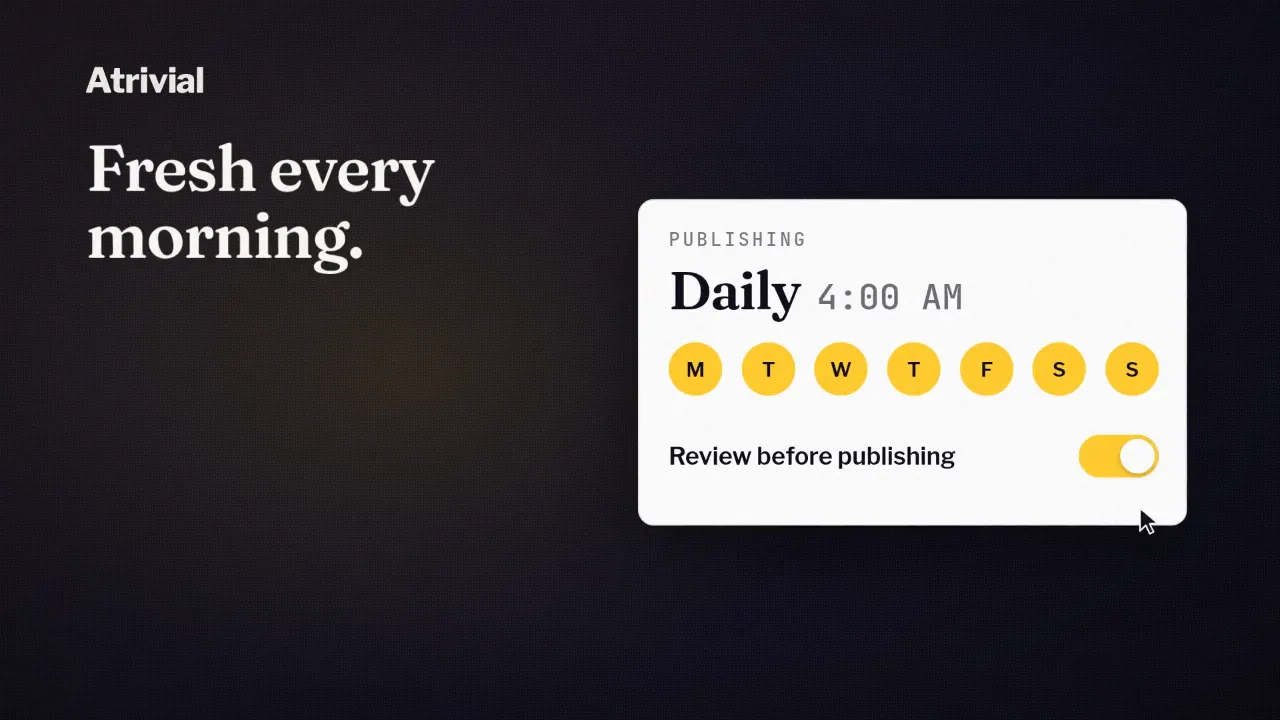
When a question misfires, catch the next one before it goes out. You can edit generated questions, answers and fun facts before they go live, and Review before publishing has you approve each new edition of a recurring quiz.
What sponsors got
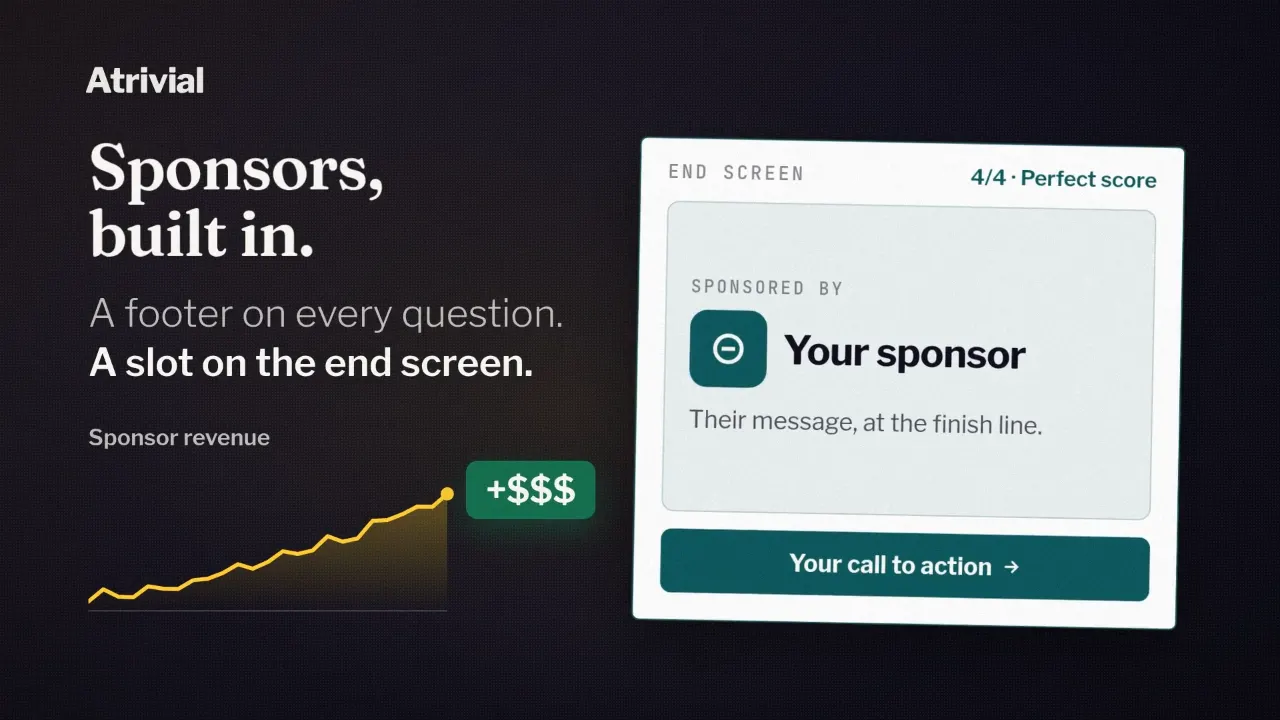
Business adds a Sponsorship tab. It shows End-Screen Sponsor Impressions, Sponsor Clicks for the footer and the offer card combined, and Sponsorship Footer Impressions, which the Portal marks as an estimate. There's no click-through rate in the tab, and a click isn't a sale, so pair these counts with the sponsor's own numbers.
How far back each plan looks
The date picker offers Last 7 days, Last 14 days, Last 30 days, Last 90 days, This month, Last month and All available dates, or a custom range. How far back you can reach depends on your plan.
On a weekly schedule, 30 days holds about four editions and 90 days about thirteen. If you want to compare one run of editions with the one before it, that gap matters.
- Individual keeps 30 days of history, with the Overview and Quiz results tabs.
- Business keeps 90 days and adds the Sponsorship tab, engagement from your website embeds, and Typical Engaged Duration, the median time spent in engaged visits.
- Enterprise keeps three years.
Analytics comes with every plan, so compare how much history and which tabs each one includes.
Compare plans